
[Studio] Markdown Now Supported in Episode Bios
Hello, Directors!
I'm Sion, the Frontia Manager☺️
We've noticed a lot of you drawing lines like 「─────┤ℹ️ Basic Info├─────」 by hand just to split your Bio into sections.
With plain text only, the best parts of your Episode could easily get lost in one long block.
So now, you can use Markdown in your Episode Bio.
Add headings, bold text, quotes, lists, images, and even spoilers to show off what makes your Episode special at a glance.
What's new
- The Bio box in Studio "Publish settings" now has formatting buttons.
- Your formatted Bio shows up on the Episode page in both the app and on the web.
- You can add images from your device and hide plot twists with spoilers.
1. What is Markdown?
It's a way of writing where a few simple symbols around your text turn it into headings, bold text, lists, and more.
- Don't know the symbols? No problem! The formatting buttons add them for you.
- What you format shows up right away in the Bio box. No need to switch to a preview.
- If you already know Markdown, you can type it directly and it'll apply instantly.
2. How to use it in Studio
Use the buttons above the Bio box in "Episodes → Publish settings → Bio".
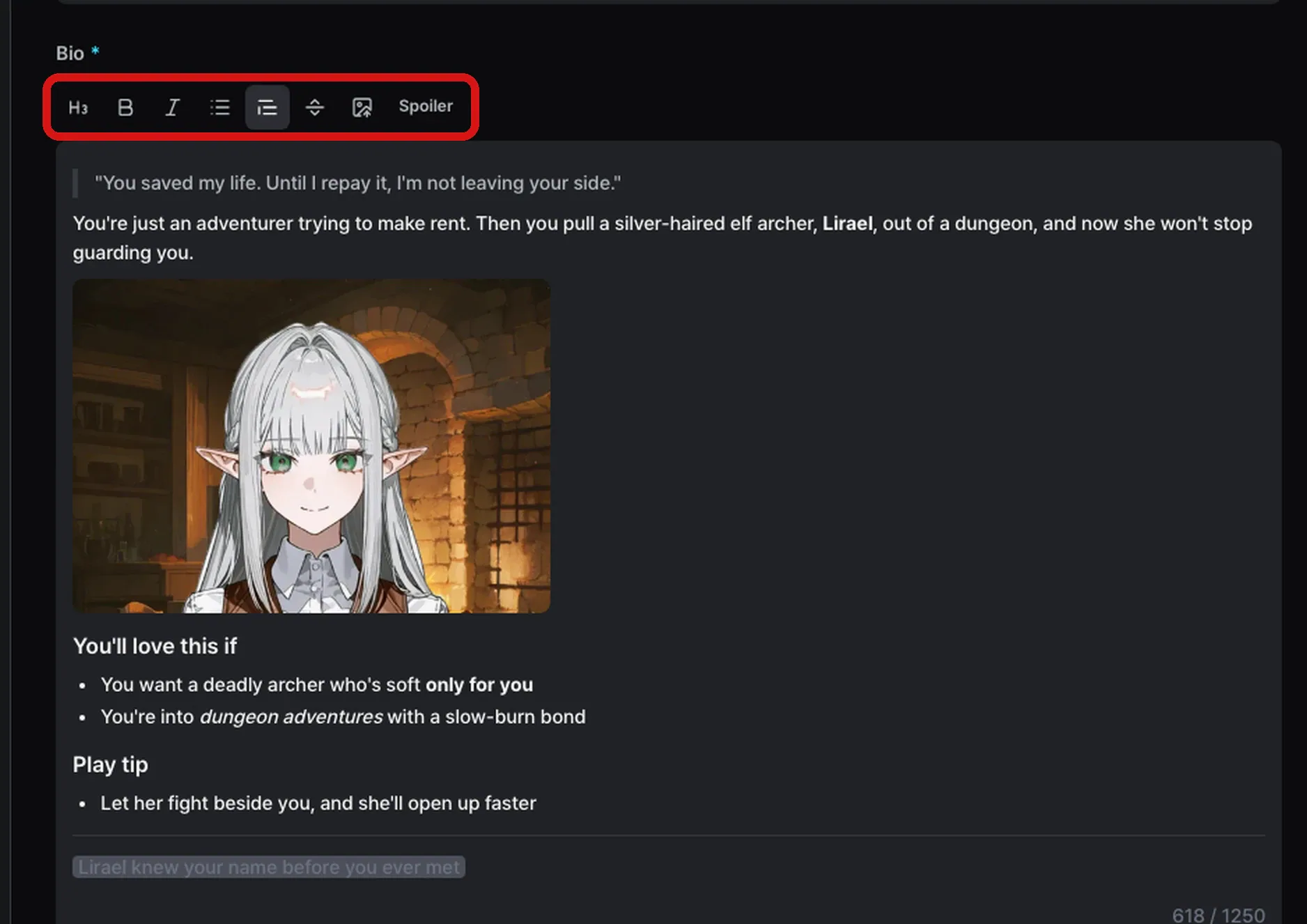
Formatting buttons now sit right above the Bio box.
- From left to right, the buttons are Heading · Bold · Italic · Bulleted list · Quote · Divider · Insert image · Spoiler.
- Select the text you want to format, then click a button. For spoilers, select the text to hide and click "Spoiler". That's it!
- Click "Insert image" and pick an image from your device. It drops right where you were typing.
[Typing the symbols yourself]
- Heading: ### and a space at the start of a line
- Bold: **text**
- Italic: *text*
- Bulleted list: - and a space at the start of a line
- Quote: > and a space at the start of a line
- Divider: --- on its own line
- Spoiler: ||hidden text||
3. What Protagonists will see
Your Bio shows up exactly as you formatted it on the Episode page, and long Bios can be collapsed and expanded.
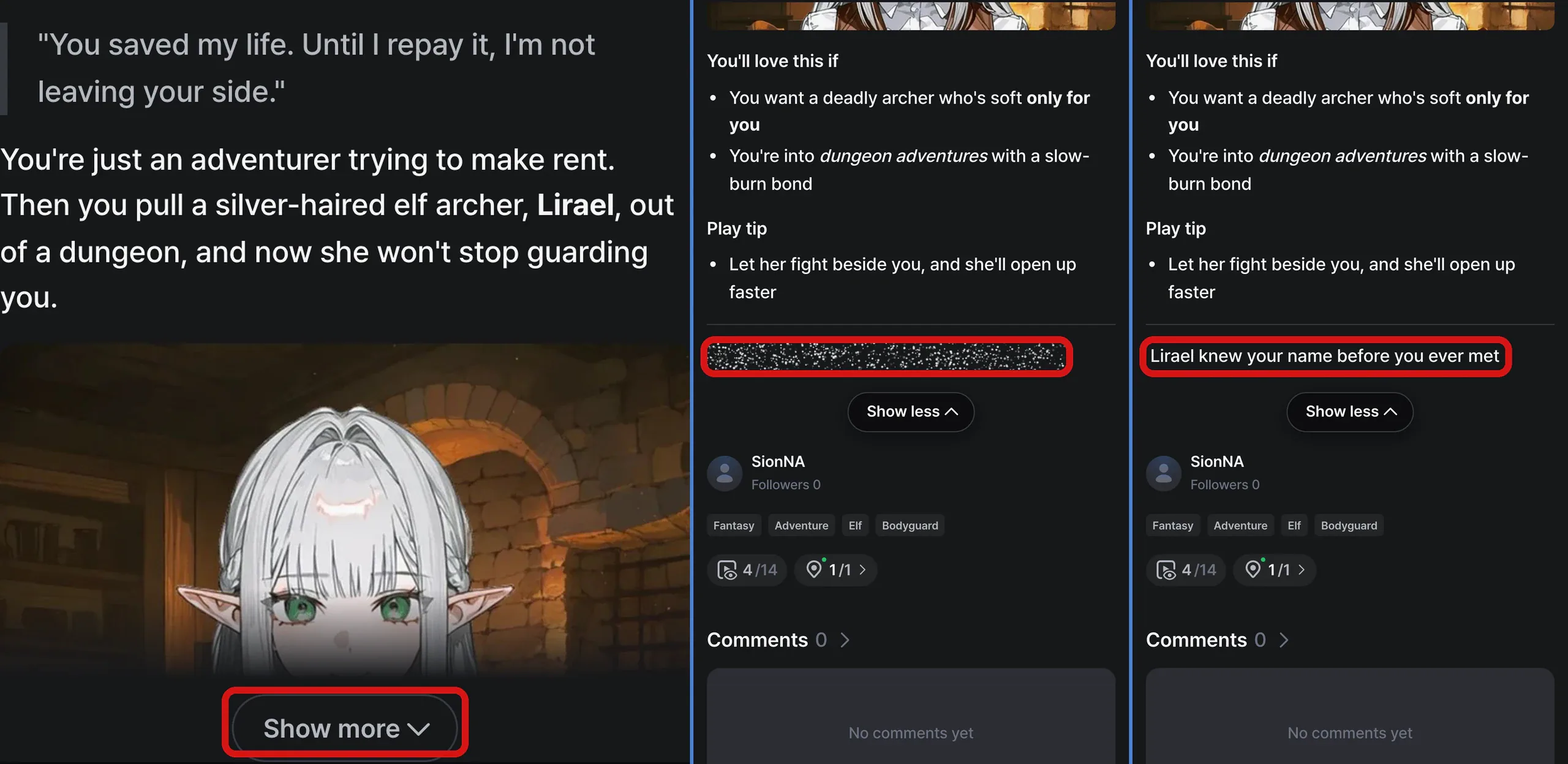
① Long Bios collapse after the first screen and open with "Show more" ② Spoilers stay hidden under sparkles ③ until someone taps them
4. Ways to make it shine
[Lead with your strongest moment]
- When collapsed, only the top of your Bio is visible. That's where Protagonists decide whether to hit "Play now".
- Try putting a character's line at the very top as a quote, then set up the story in two or three lines. Basic info and recommended models can go further down.
[Use headings instead of divider lines]
- Add headings like "Basic Info", "Recommended AI Model", or "Play Tips" and organize what's under them as lists. Your sections stay neat without any special-character lines.
- Got a big cast? Give each character a one-line intro in a list.
[Set the mood with images]
- Character art, relationship charts, world maps — show what would take too long to explain in a single image.
- Images shrink to fit the width of the Bio, and images smaller than that stay at their original size.
- Tall images take up most of the first screen, so wide or cropped images work best up top. (Tip!)
[Hide twists and secret conditions with spoilers]
- Hide hints about plot twists or secret endings with a spoiler, and only curious Protagonists will tap to see them.
- It also works for heads-ups about intense scenes that some readers may not want to see in advance.
5. Good to know
- Bios can be up to 1,250 characters, same as before, and symbols count toward the limit. Each image takes up about 130 characters, so plan how many you want to add.
- Only images added with "Insert image" will show. Pasting an image link on its own won't display the image.
- Links and web addresses in your Bio show up as plain text and can't be tapped.
- To show your edited Bio to Protagonists, publish it and switch the public version. If you publish it as "Only me", you can check it first with ▶ in "Version history".
📌 Bios published before this update still appear as plain text, and Markdown applies once you publish again. If your Bio uses special characters, check that nothing looks different from what you intended when you republish.
Open "Publish settings" for one of your public Episodes in Studio, and start by adding a line from your character at the very top.
If you have thoughts or run into anything, let us know anytime on our official Discord or through the Help Center!
Thank you,
Sion 🙇♂️