
What's the difference between Drama and Novel?
Last updated: October 19, 2026
Drama lets you tap through scenes one screen at a time, and Novel lets you scroll down through the text continuously, like a webcomic. Choose the one you want from the 「Drama」 / 「Novel」 tabs at the very top of Home and browse. Their previous names were Drama = Play view (page view) and Novel = Scroll view.
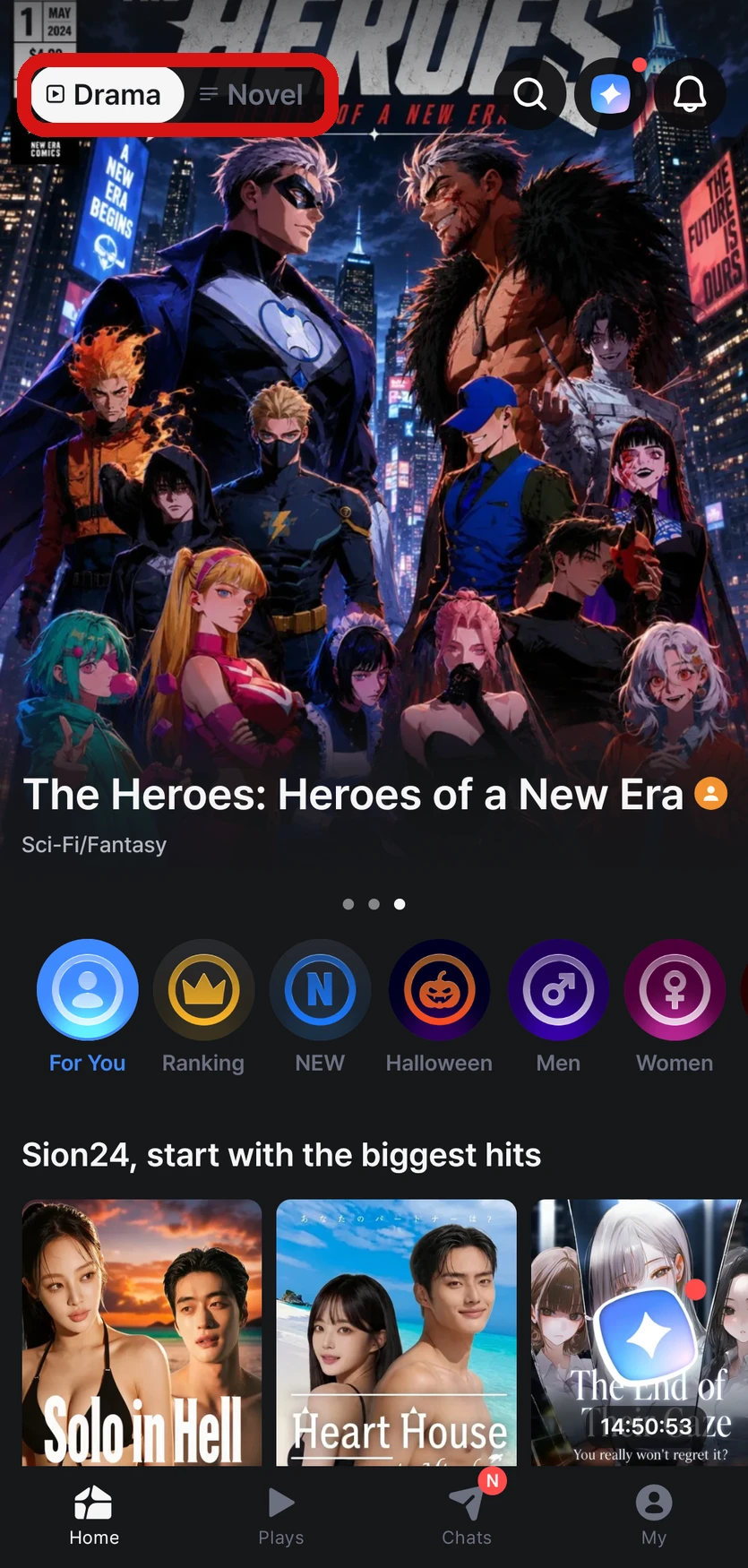
What's the difference?
| Drama | Novel | |
|---|---|---|
| How it works | Tap to move through scenes and lines one screen at a time | Scroll down through the text continuously, like a webcomic |
| How it feels | Focus on images and staging, and enjoy each scene in rich detail | Stay immersed in an uninterrupted flow. Background art appears between the text, and narration and dialogue are shown in different colors |
In Novel, you can move quickly with the 「Top」 / 「Bottom」 buttons, and scroll up to read earlier parts again.
How do I choose?
- Browse Episodes in the view you want from the 「Drama」 / 「Novel」 tabs at the very top of Home. The app opens to the tab you used last
- On the Episode details screen, choose 「Drama」 or 「Novel」 to start a new playthrough in that view. 「Continue」 picks up your most recent playthrough in the view you currently have selected
- The Director sets a default view for each Episode, so if you open it from search, a notification, or a shared link, it opens in that view
I want to switch during play
You can change it in 「⚙ Settings」 → 「Play settings」 → 「View mode」 on the right side of the play screen. Depending on your app version, this item may appear as 「Play view / Scroll view」 (Play view = Drama, Scroll view = Novel).
Novel-only settings
When playing in Novel, Play settings has these additional items.
| Item | Description |
|---|---|
| 「Dialogue display」 | Choose 「Novel mode」 or 「Chat mode」 |
| 「Narration brightness」 | Adjust the brightness of narration text (the far right is the same brightness as dialogue) |
| 「Show images」 | Turn on/off the 「Background image」 (behind the screen), 「Background images in text」 (between the text), and your character's (protagonist's) image |
| 「Image size」 | 「Full size」 / 「Small」 |
For other settings like font, text size, volume, and auto-advance, see I want to change settings while playing.
Q. I don't see the Drama/Novel tabs on Home.
Please update the app to the latest version from the store.