
I want to change settings while playing
Last updated: October 29, 2026
Tap 「⚙ Settings」 at the top of the button column on the right side of the play screen to open the menu, and change them in 「Play settings」. Defaults for playthroughs you start from now on are set in MY → menu (≡) at the top right → 「Settings」 → 「Play environment」.
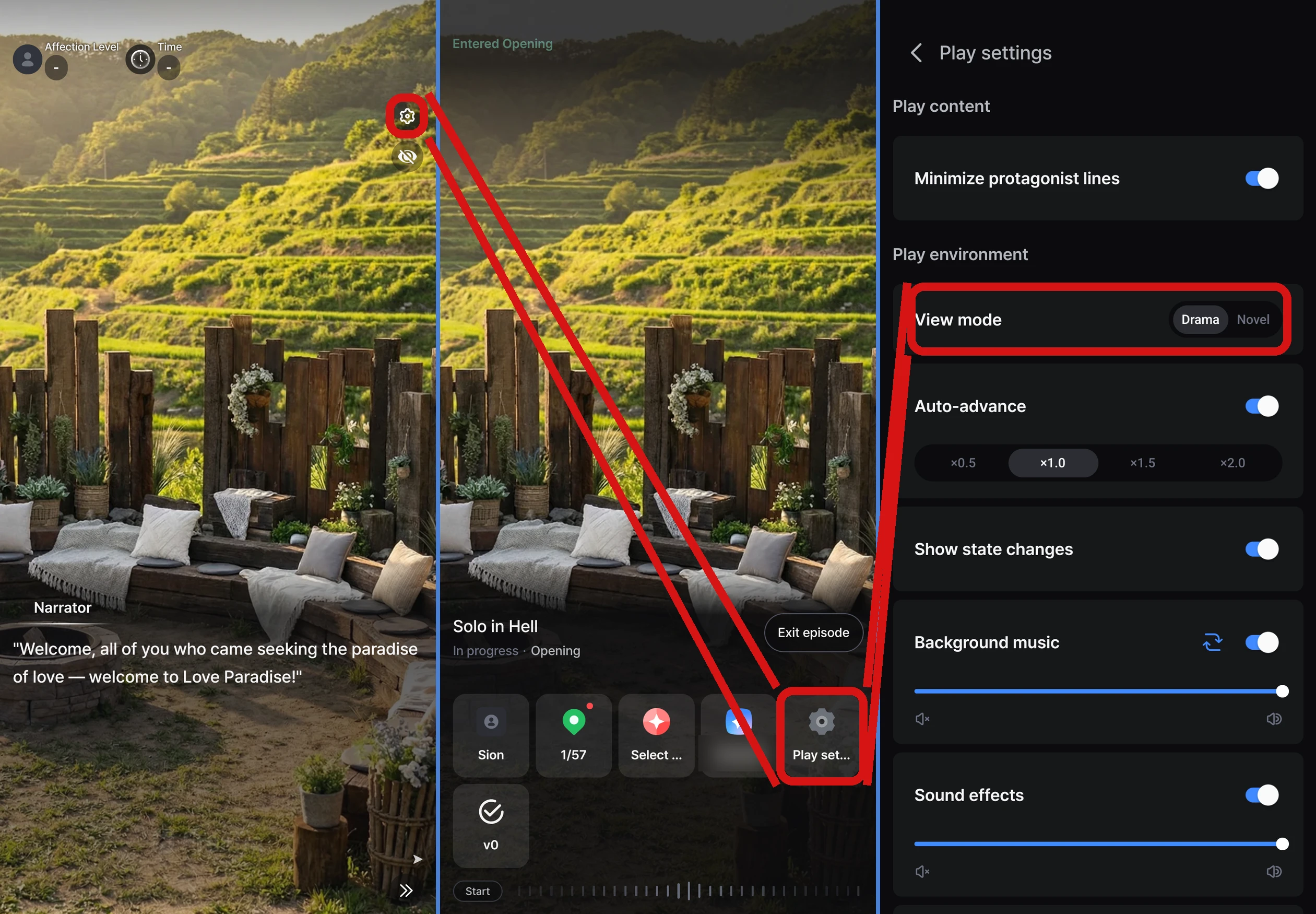
What you can do from the menu
| Menu | What it does |
|---|---|
| 「My info」 | Check or switch your character for this playthrough, replace or create images, and write a Memory Note → I want to change my character in the story |
| 「Event map」 | Check the story path you've taken in this playthrough → How far along am I in the story? |
| 「Select model」 | Choose the model to use from the next time the AI writes the story → I want to change the AI model |
| 「My Stars」 | Check your Star balance |
| 「Play settings」 | The settings in the table below |
| 「Version update」 | Move to the latest content the Director edited → I got a notification that an Episode I was playing was updated |
| 「Exit episode」 | End your play session |
On the web, you can use the same items (including 「Select AI model」) from the menu on the play screen.
What you can change in Play settings
| Item | Description |
|---|---|
| 「Minimize protagonist lines」 | When on, the AI writes fewer lines for your character |
| 「View mode」 | Switch between Drama / Novel. Depending on your app version, it may appear as 「Play view / Scroll view」 (Play view = Drama, Scroll view = Novel) |
| 「Auto-advance」 | Turn automatic scene advancing on/off and set its speed |
| 「Show state changes」 | Turn on/off the brief pop-up that appears when values like affection change |
| 「Volume」 | Volume for background music and sound effects |
| 「Text streaming」 | Turn on/off the effect where text appears as if it's being typed |
| 「Font」 · 「Text size」 | Font type and text size (Small/Medium/Large) |
When playing in Novel, there are additional Novel-only settings, such as how dialogue is displayed, narration brightness, and showing images → What's the difference between Drama and Novel?
In 「Play environment」, you can set the defaults for auto-advance speed (×0.5 / ×1.0 / ×1.5 / ×2.0), 「Show state changes」, text streaming, text size, font, and haptic feedback. The defaults for auto-advance and 「Show state changes」 apply from playthroughs you start after that.
Handy screen controls
- Pause auto-advance — Tap the middle of the screen during auto-advance to pause, and tap again to resume
- View images only — Tap the eye button below 「⚙ Settings」 to temporarily hide dialogue and value displays so you can see only the image
- Move quickly — Press and hold the left or right side of the screen to go to the previous or next scene. You can also jump straight to any point with the 「Start」 button below the menu and the progress bar
- Press and hold a choice — Press and hold a choice to put that sentence into the input field, so you can edit it before sending
- Keep the background music playing — The background music doesn't stop even when you go to the menu, Event map, My info, Select model, or Star top-up screens during play
FAQ
Q. I don't see values like affection at the top of the screen.
These values (「State」) only appear in Episodes where the Director has added them. If you turned on the eye button (view images only), they're temporarily hidden, so tap it again.
Q. No pop-up appears when values change.
Check the 「Show state changes」 setting. Some Episodes have it set to off from the start. You can turn it on yourself in 「Play settings」 or 「Play environment」.
Q. Tapping the middle of the screen doesn't open the menu.
The menu opens with the 「⚙ Settings」 button at the top of the button column on the right side of the screen. Tapping the middle of the screen pauses or resumes auto-advance.
Q. I can't see the 「⚙ Settings」 button or the eye button.
If you've hidden screen elements with the eye button, tap it again. If you still can't see them, please update the app to the latest version from the store.